BTInternet
- Go to www.bt.com/email and log into your account
- Click on the cog symbol at the top right of the screen
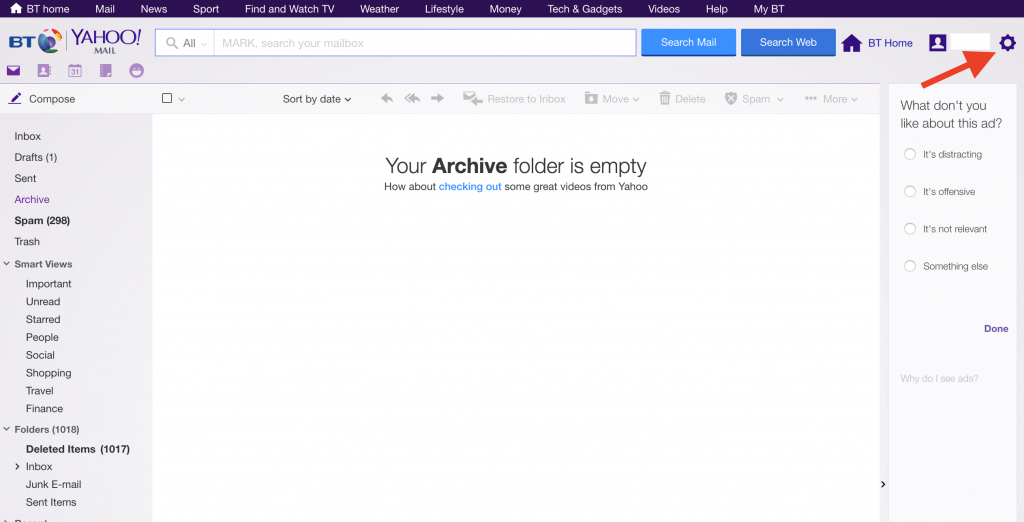
- Select ‘Settings’
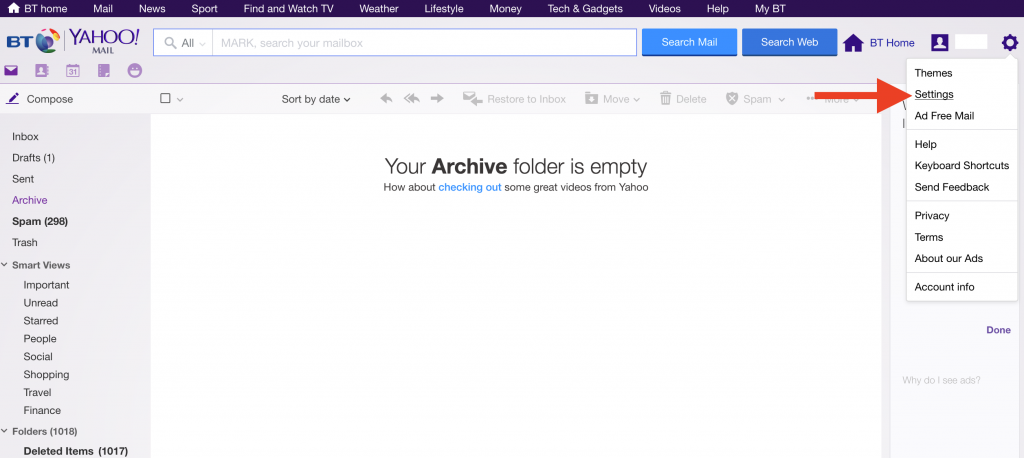
- Then select ‘Filters’
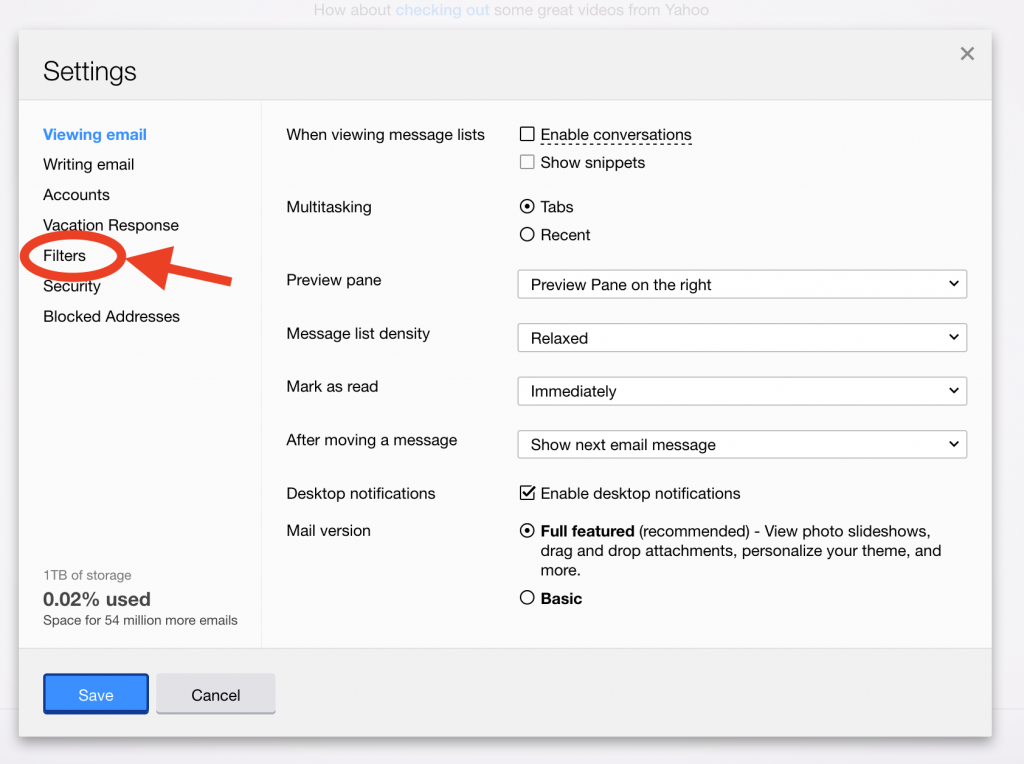
- Click ‘Add’ to create a new filter
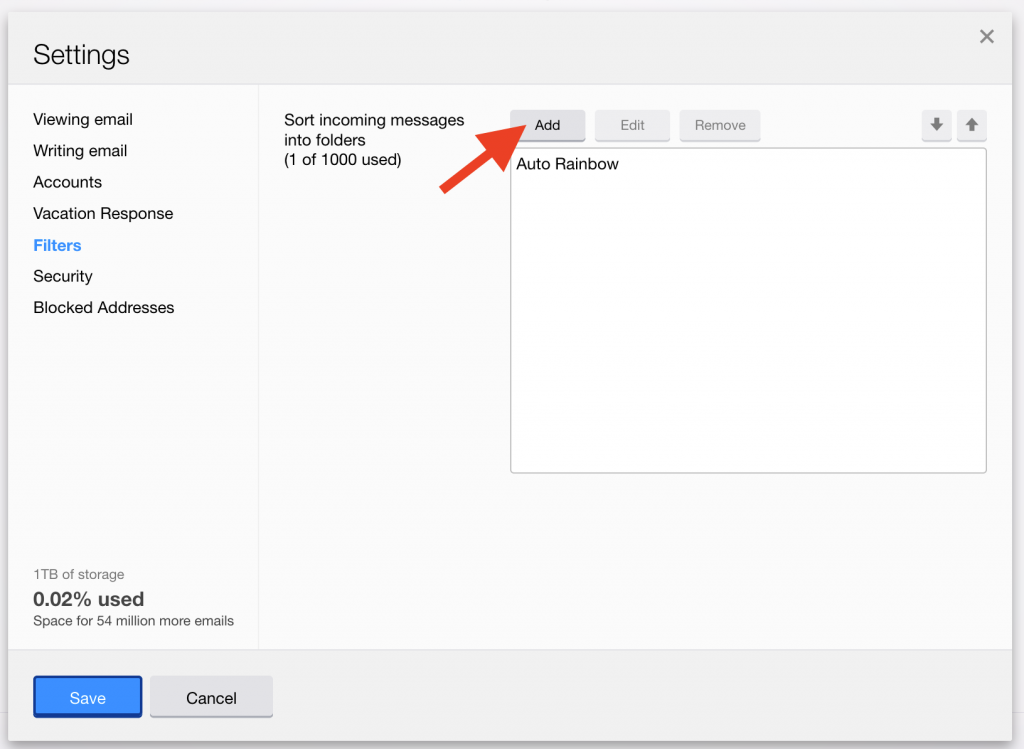
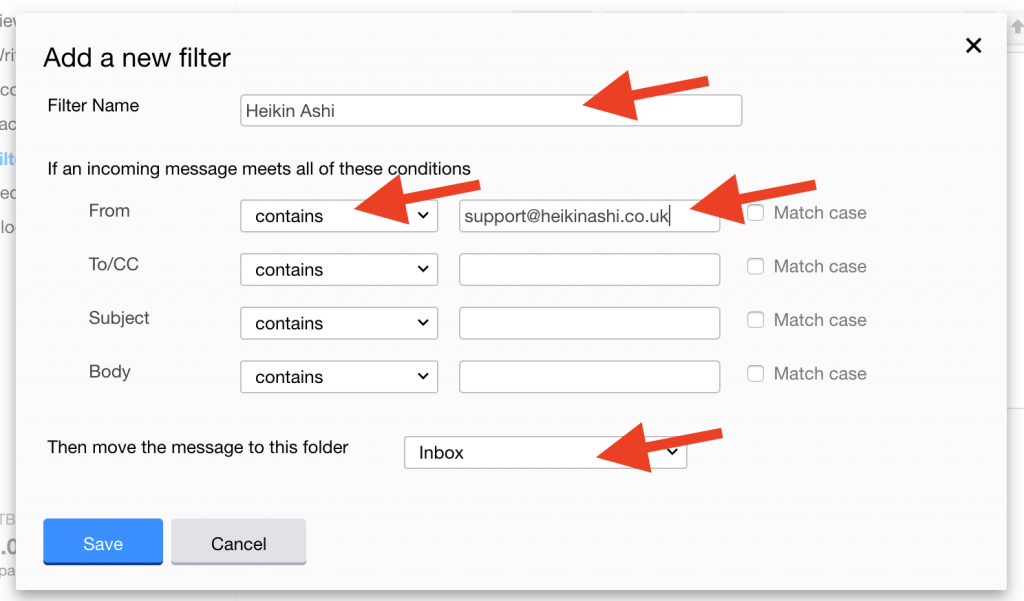
- Give your filter a name, then the email address you wish to receive mail from (support@heikinashi.co.uk) in the ‘From’ box. Select ‘Inbox’ in the drop-down menu where the email should be delivered to.
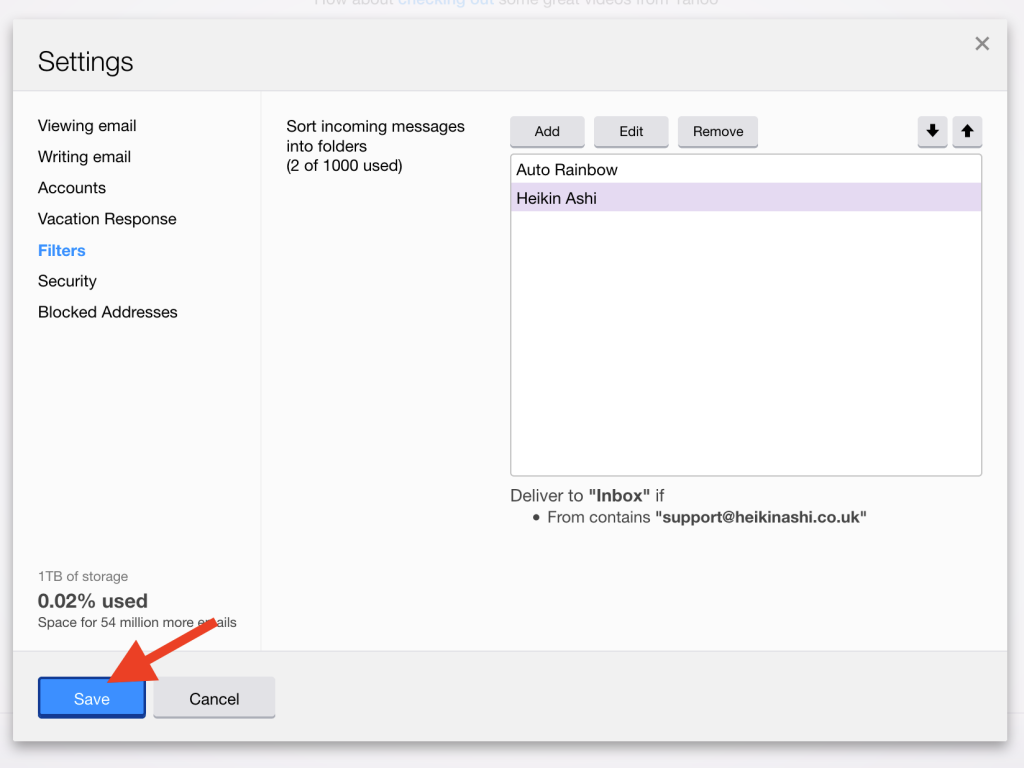
- ‘Save’ the filter, then save your changes.
Gmail
- Open an email from us (our first emails will probably end up in your ‘promotions’ folder)
- Click on the ‘More’ drop down menu (Can be found on top right of email)
- Click ‘Add to Contacts list’
- The highlighted message ‘The sender has been added to your contacts list’ will then appear
Yahoo
- Open an email from us.
- Click on the ‘Options’ menu
- Click ‘Add Sender to Contacts’
- Then click ‘Save’ and then ‘Done’
AOL Mail
- Click ‘Contacts’ (left hand toolbar)
- Click ‘New Contact’
- Add this address: support@heikinashi.co.uk
- Click ‘Add Contact’
Microsoft Outlook
- (Outlook 2010) Click on ‘Junk’ drop down menu
- (Outlook 2003 & 2007) Click on ‘Actions’ then ‘Junk email’
- Click on ‘Junk email options’
- Click on ‘Safe Senders’
- Add this address to list: support@heikinashi.co.uk
Outlook.com
- Select ‘Options’ from Outlook toolbar
- Click ‘More email settings’
- Click ‘Safe and blocked senders’
- Click ‘Safe senders’
- Add this to the list: support@heikinashi.co.uk